GB WhatsApp Troubleshooting Guide: Issues & Fixation
GB WhatsApp users encounter various technical issues that disrupt their messaging experience regularly. Understanding how to troubleshoot common problems saves time and prevents frustration significantly. Most GB WhatsApp issues have simple solutions that work without technical expertise required. This comprehensive guide addresses the most frequent problems with step-by-step solutions.
App Crashes and Freezes
GB WhatsApp sometimes crashes unexpectedly or freezes during use, causing annoyance and disruption. These stability issues usually result from corrupted cache files or insufficient device resources. The app may close suddenly or become unresponsive requiring force closure.
Quick fixes for crashes:
- Clear GB WhatsApp cache in app settings
- Free up device storage space by deleting unused files
- Close background apps consuming RAM
- Update to the latest GB WhatsApp version
- Restart your phone completely
- Reinstall GB WhatsApp if problems persist
- Check if your device meets the minimum requirements
Cache clearing resolves most crash issues within seconds without data loss. Navigate to phone settings, find GB WhatsApp, and select the clear cache option. Your messages and media remain safe during this process.
Messages Not Sending or Receiving
Failed message delivery frustrates users who depend on timely communication with contacts. This problem occurs due to internet connection issues or server synchronization failures. Messages get stuck with a single gray tick that never progresses further.
Delivery problem solutions:
- Check your internet connection strength
- Switch between WiFi and mobile data
- Restart GB WhatsApp completely
- Clear app cache and data
- Verify phone date and time settings
- Disable VPN or proxy temporarily
- Check if the recipient blocked your number
- Update to the latest app version
Internet connectivity causes most delivery failures, so verify your connection first. Toggle airplane mode on and off to reset network connections. Wait a few moments before attempting message resend.
Cannot Download Media Files
Media download failures prevent you from viewing photos, videos, and documents shared by contacts. The download icon appears but nothing happens when you tap it. This issue relates to storage permissions or insufficient space on the device.
Media download fixes:
- Grant storage permissions to GB WhatsApp
- Free up device storage space
- Check the SD card if media saves there
- Clear GB WhatsApp cache
- Restart the application
- Verify internet connection stability
- Change media download settings
- Reinstall app if the problem continues
Storage permissions are critical for media downloads to function properly. Go to phone settings, find GB WhatsApp permissions, and enable storage access. The app needs this permission to save files to your device.
Backup and Restore Failures
Backup failures risk permanent loss of valuable chat history and media files. The backup process starts but never completes or shows error messages. Restore attempts fail, leaving you without your previous conversations.
Backup issue solutions:
- Ensure sufficient Google Drive storage space
- Check the internet connection during backup
- Verify Google account login status
- Clear GB WhatsApp cache before backup
- Try local backup instead of cloud
- Restart the phone and attempt again
- Update GB WhatsApp to the latest version
- Check that file permissions are granted
Local backups save to your device storage and work without an internet connection. Find backup files in GB WhatsApp/Database folder using a file manager. These files restore your chats during fresh installations.
Notification Problems
Missing notifications means you do not know when messages arrive from contacts. The app receives messages, but your phone never alerts you about them. This problem stems from notification settings or battery optimization interference.
Notification fixes:
- Enable notifications in phone settings
- Disable battery optimization for GB WhatsApp
- Check notification priority settings
- Grant notification permissions to the app
- Restart your device
- Reinstall GB WhatsApp fresh
- Check Do Not Disturb mode status
- Verify notification tone is audible
Battery optimization often stops background apps from sending notifications to save power. Disable this feature specifically for GB WhatsApp in battery settings. The app needs background access to deliver timely notifications.
Connection Issues
Connection errors prevent GB WhatsApp from communicating with servers properly. Messages show “connecting” status endlessly without successful connection establishment. This issue blocks all app functionality until resolved.
Connection problem solutions:
- Check if the internet connection works for other apps
- Clear GB WhatsApp cache and data
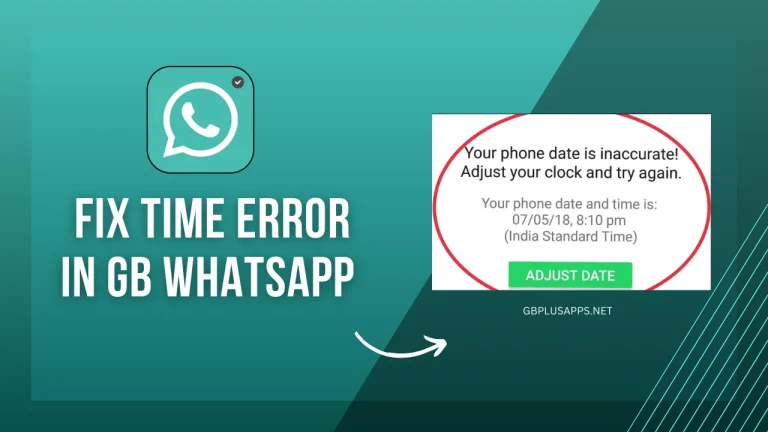
- Verify phone date and time are correct
- Disable VPN or proxy services
- Switch between WiFi and mobile data
- Update the app to the latest version
- Check if WhatsApp servers are down
- Reset network settings on the device
Incorrect date and time settings cause authentication failures with WhatsApp servers. Enable automatic date and time in phone settings for accurate synchronization. This simple fix resolves many connection problems instantly.
Contact Sync Problems
Contact sync failures mean new phone numbers do not appear in GB WhatsApp. The app cannot access your contact list or shows outdated information. This problem relates to permission settings or cache issues.
Contact sync solutions:
- Grant contacts permission to GB WhatsApp
- Refresh the contact list in app settings
- Clear GB WhatsApp cache
- Restart the application
- Verify that contacts are saved properly in the phone
- Update the app to the latest version
- Reinstall GB WhatsApp if needed
Contact permissions must be enabled for the app to access your phone book. Check app permissions in phone settings and toggle contacts access on. GB WhatsApp reads your contact list to display names and numbers.
Video Call and Voice Call Issues
Call features sometimes fail to work properly in GB WhatsApp versions. Video calls do not connect or audio quality remains poor throughout conversations. Some GB WhatsApp versions lack call functionality entirely.
Call problem fixes:
- Verify your GB WhatsApp version supports calls
- Check microphone and camera permissions
- Test internet connection speed
- Close background apps using resources
- Update to version with call features
- Switch to better network connection
- Restart app before making calls
Not all GB WhatsApp versions include calling features due to development complexity. Check your version’s feature list to confirm call support exists. Update to versions specifically advertising call functionality if needed.
Storage Space Issues
GB WhatsApp consumes excessive storage space over time from accumulated media and cache. Your phone storage fills up preventing new downloads and updates. The app stores received media automatically by default.
Storage management solutions:
- Clear chat history for old conversations
- Delete downloaded media files
- Disable automatic media download
- Clear cache regularly
- Move media to SD card
- Use storage management tools
- Backup and delete old chats
Automatic media download fills storage quickly in active group chats. Disable this feature in settings and download only needed media manually. This simple change dramatically reduces storage consumption.
App Update Problems
Update installations fail preventing you from accessing latest features and security improvements. The new version does not install over existing app properly. Error messages appear during the update process blocking completion.
Update troubleshooting:
- Free sufficient storage space first
- Backup chats before updating
- Enable unknown sources permission
- Download from trusted sources only
- Clear old APK files
- Restart the phone before the update
- Uninstall and reinstall if necessary
Always back up your chats before attempting updates to prevent data loss. Updates occasionally fail and require fresh installations that erase local data. Cloud or local backups protect your conversation history completely.
More issues:
Conclusion
Most GB WhatsApp problems have straightforward solutions involving cache clearing, permission verification, storage management, and internet connection checks that resolve issues within minutes. Understanding common troubleshooting steps empowers you to fix problems independently without waiting for external help or support.
Keep your app updated, maintain regular backups, grant necessary permissions, and monitor storage space to prevent most issues from occurring. When standard solutions fail, fresh reinstallation with proper backup restoration solves persistent problems while preserving your valuable chat history and media files completely.