Fix GB WhatsApp Time Error: 100% Working Solution
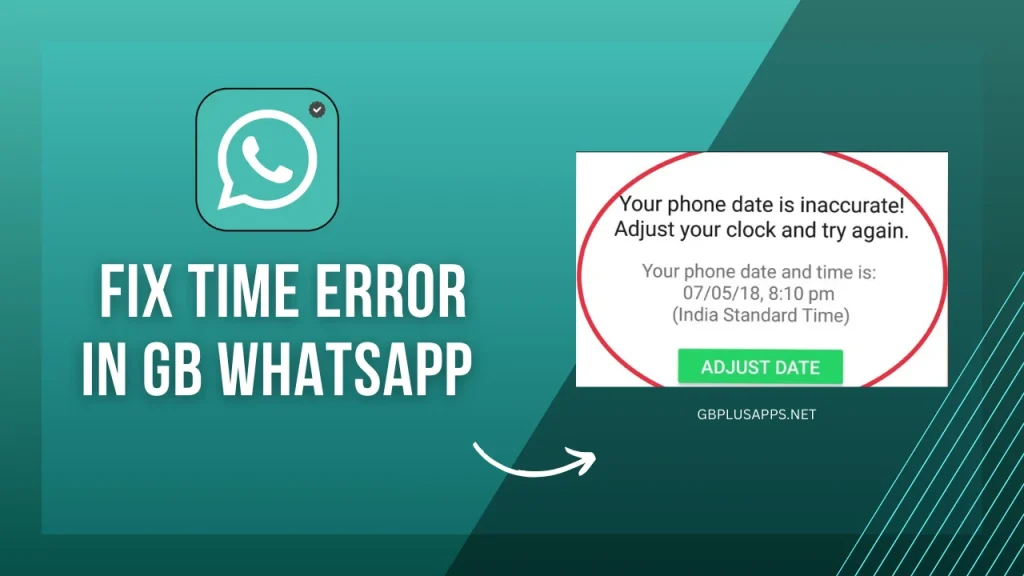
GB WhatsApp users sometimes encounter time-related errors that prevent the app from working properly. These errors show incorrect message timestamps or block you from sending messages entirely. Time errors occur when your device clock does not match the WhatsApp server time. This guide provides quick solutions to fix time errors and restore normal GB WhatsApp functionality.
What Causes Time Errors
Time errors happen when your phone’s date and time settings conflict with GB WhatsApp server requirements. The app relies on accurate time synchronization to deliver messages correctly and maintain conversation order. Incorrect time settings create authentication problems that prevent the app from connecting to servers. Manual time adjustments, automatic time zone changes, and system glitches all contribute to these errors.
See more WhatsApp GB TroubleShooting Guides issues & fixes
Enable Automatic Date and Time
Your phone should use network-provided time for accurate synchronization with WhatsApp servers. Manual time settings often drift from actual time and cause conflicts. Automatic date and time eliminates most time-related errors instantly by maintaining perfect synchronization.
Automatic time setup:
- Open your phone Settings app
- Navigate to System or General Management
- Tap Date and Time settings
- Enable Automatic Date and Time option
- Enable Automatic Time Zone as well
- Restart GB WhatsApp after making changes
Your phone now synchronizes time with your cellular network automatically. This prevents future time errors from occurring in GB WhatsApp.
Set Correct Time Zone
Wrong time zone settings cause message timestamps to appear incorrect even with automatic time enabled. Your phone must use the time zone matching your current physical location. Time zone errors are common after traveling or changing SIM cards.
Time zone correction:
- Access Date and Time settings on your device
- Check your current time zone selection
- Verify it matches your actual location
- Change manually if automatic selection is wrong
- Confirm the displayed time now appears correct
- Restart GB WhatsApp to apply changes
Some phones struggle with automatic time zone detection during travel. Manual selection ensures accuracy when automatic systems fail.
Synchronize with Internet Time
Network time synchronization sometimes fails due to carrier issues or weak signals. Internet time provides an alternative synchronization source that works through WiFi. This method proves especially useful when cellular network time is unreliable.
Internet time sync:
- Connect to a stable WiFi network
- Disable and re-enable automatic time in settings
- Wait for your phone to sync with internet servers
- Check that displayed time matches actual time
- Open GB WhatsApp and verify message timestamps
- Send a test message to confirm functionality
Internet synchronization typically takes a few seconds to complete. Watch for time changes on your status bar during synchronization.
Clear GB WhatsApp Cache
Cached data sometimes stores incorrect time information that conflicts with current settings. Clearing cache removes this outdated information and forces GB WhatsApp to retrieve fresh time data. This solution works when settings appear correct but errors persist.
Cache clearing process:
- Go to phone Settings and open Apps
- Find GB WhatsApp in your app list
- Tap Storage or Storage Usage
- Select Clear Cache button
- Wait for the process to complete
- Restart GB WhatsApp normally
Cache clearing does not delete your messages or media files. Only temporary system files are removed during this process.
Restart Your Device
Simple phone restarts resolve many time synchronization glitches that cause GB WhatsApp errors. Restarting refreshes system processes and reestablishes proper time connections. This basic troubleshooting step fixes problems that resist other solutions.
Restart procedure:
- Save any open work on your phone
- Press and hold the power button
- Select Restart or Reboot option
- Wait for your phone to shut down completely
- Allow the device to boot up fully
- Open GB WhatsApp and check for errors
Restart your phone at least once weekly for optimal performance. Regular restarts prevent many technical issues from developing.
Update GB WhatsApp Version
Outdated GB WhatsApp versions contain bugs that cause time errors on newer Android systems. Developers release updates that fix these compatibility problems regularly. Installing the latest version ensures you have all bug fixes and improvements.
Update steps:
- Visit the official GB Waves website
- Download the newest GB WhatsApp version
- Backup your chats before updating
- Install the new version over existing app
- Verify your chats restore properly
- Test message sending to confirm fix
Always backup before updating to prevent potential data loss. Updates occasionally require fresh installations that erase local data.
Check WhatsApp Server Status
Sometimes time errors occur because WhatsApp servers experience problems or maintenance. Your settings might be perfect but connection still fails. Checking server status confirms whether the problem is on your end.
Server status verification:
- Visit WhatsApp status checker websites
- Check social media for service outage reports
- Ask friends if they experience similar issues
- Wait 30 minutes before trying other solutions
- Monitor official WhatsApp channels for announcements
Server problems resolve automatically once WhatsApp completes maintenance. No action on your part can speed up this process.
Reinstall GB WhatsApp Completely
Persistent time errors sometimes require complete app reinstallation for resolution. This nuclear option removes all corrupted files and settings causing problems. Fresh installation creates a clean starting point for proper time synchronization.
Reinstallation process:
- Backup all chats to Google Drive or locally
- Uninstall GB WhatsApp completely from your device
- Delete remaining GB WhatsApp folders from storage
- Restart your phone after uninstallation
- Download latest version from official source
- Install and restore chats from backup
- Verify time displays correctly now
Reinstallation takes more time but fixes errors that resist simpler solutions. This method should be your last resort after trying other fixes.
Conclusion
Fixing GB WhatsApp time errors requires ensuring your device uses automatic date and time settings synchronized with network or internet time servers. Most time errors resolve quickly through simple solutions like enabling automatic time, correcting time zones, clearing cache, or restarting your device.
When basic fixes fail, updating to the latest GB WhatsApp version or performing a clean reinstallation eliminates persistent time synchronization problems and restores normal messaging functionality with accurate timestamps.